Access all Premium Skills for US$8.99/month. Cancel anytime.See plans
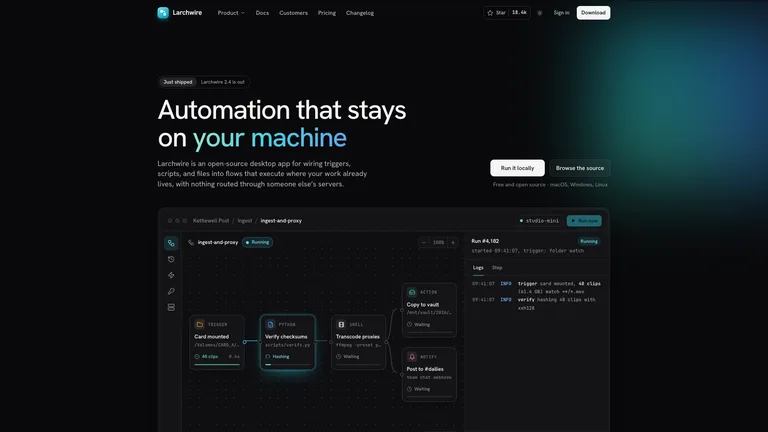
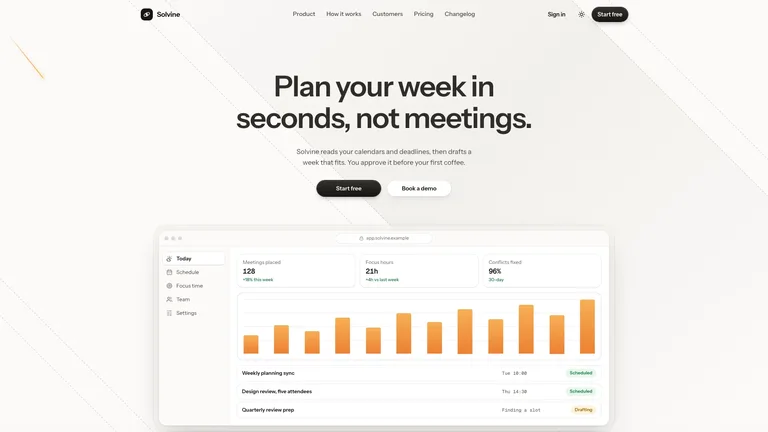
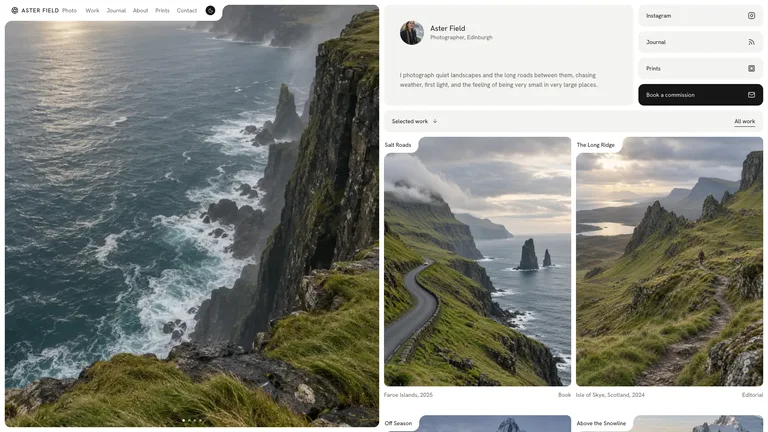
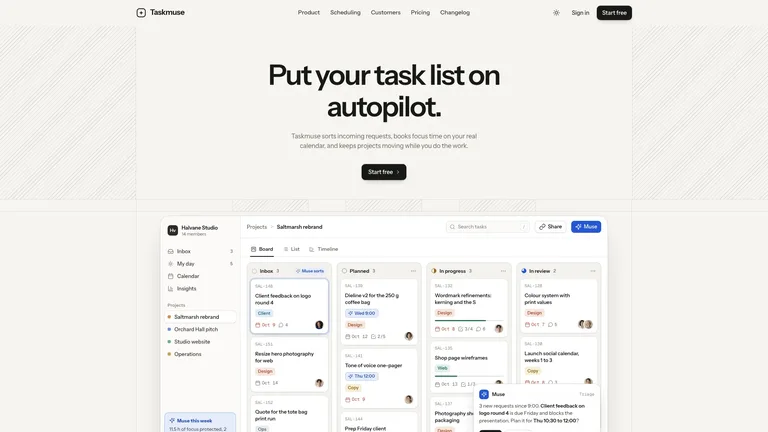
Web pages · Slides · Videos

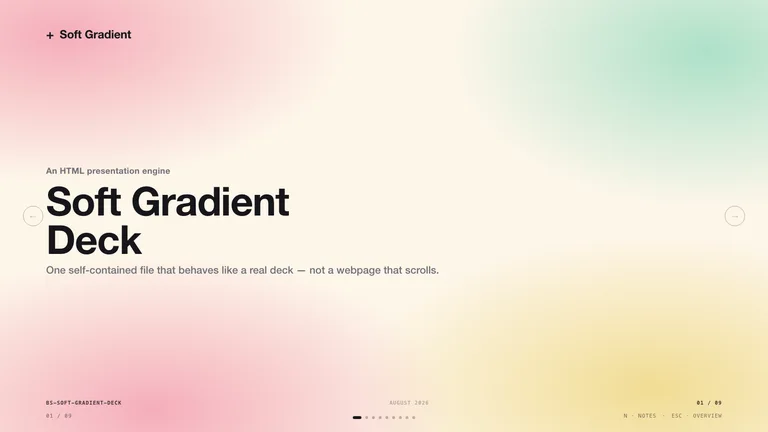
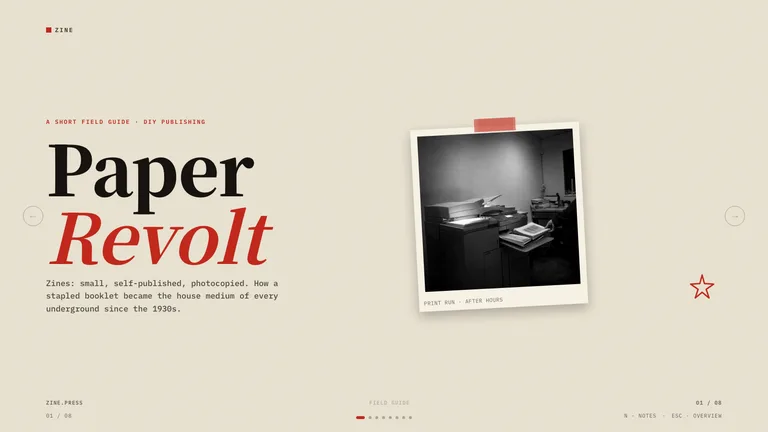
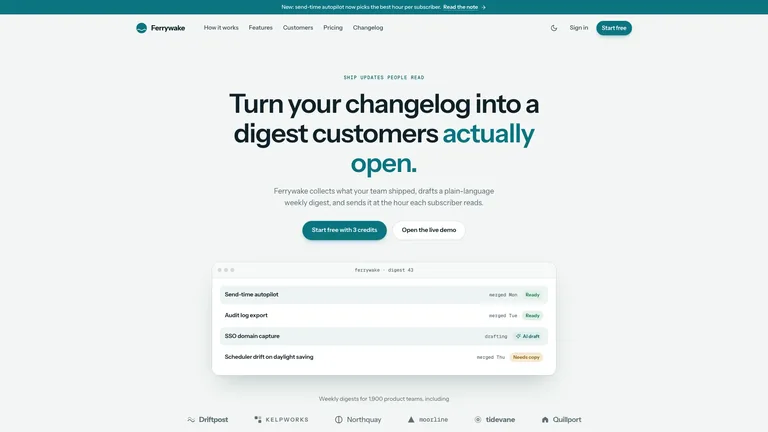
Claude Code Skills for slides, websites, video and images

Claude Code is Anthropic's coding agent for the terminal and IDE. Install a Skill into Claude Code with one command, then ask it for a finished deck, web page, video or image.

Works inClaude CodeCodexCursorGemini CLIGitHub CopilotOpenCodeKimi CodeOpenClaw
ImageFree
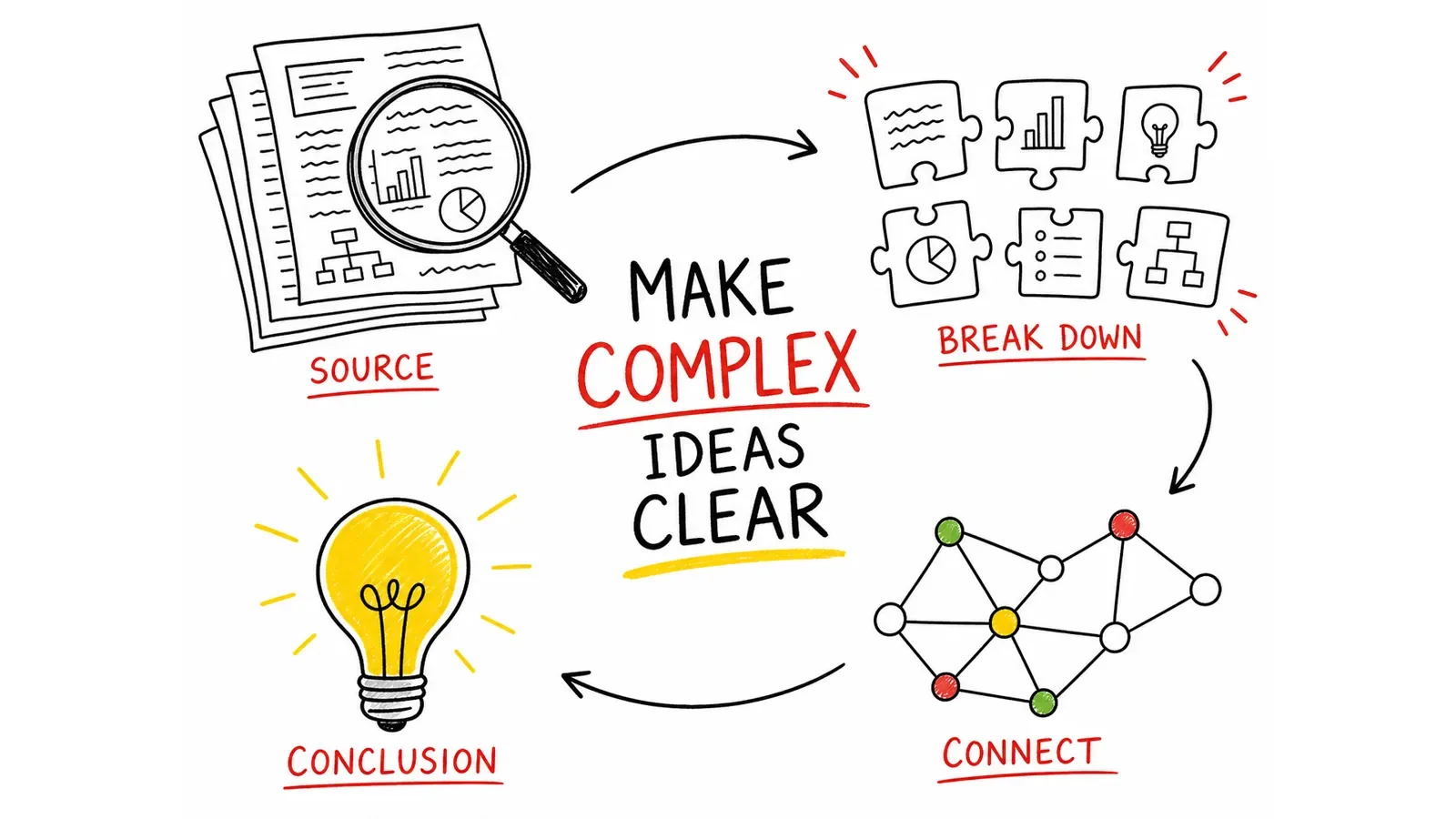
Hand-Drawn Visual Notes
00

Turn source material into one focused 4:3 visual note, using hand-drawn illustrations, a strong English title, and a small set of accurate labels. It helps educators, creators, and teams make a process or idea easier to understand at a glance without reducing it to a dense slide.

What Claude Code Skills do

A Skill is a folder with a SKILL.md file. Claude Code reads it and knows how to do that kind of job.

SKILLRZ GUIDE

Install and use a Skill

Browse the Skillrz library, sign in, and open a published Skill. Select Download to get its ZIP package. Your account must have access to the selected Skill.

Install from a ZIP

  1. Extract the downloaded ZIP into a separate folder.
  2. Read SKILL.md and check the required tools and dependencies.
  3. Ask your AI agent to install the extracted folder into the workspace you choose.
  4. Run a small example and review the result before using it for your project.

Updates

Download the newly published version from the Skill page. Back up your local changes before replacing an existing installation.

Skillrz currently supports website downloads. CLI installation and automatic updates are not available.

Browse Skills →

SKILLRZ GUIDE

Install and use a Skill

Browse the Skillrz library, sign in, and open a published Skill. Select Download to get its ZIP package. Your account must have access to the selected Skill.

Install from a ZIP

  1. Extract the downloaded ZIP into a separate folder.
  2. Read SKILL.md and check the required tools and dependencies.
  3. Ask your AI agent to install the extracted folder into the workspace you choose.
  4. Run a small example and review the result before using it for your project.

Updates

Download the newly published version from the Skill page. Back up your local changes before replacing an existing installation.

Skillrz currently supports website downloads. CLI installation and automatic updates are not available.

Browse Skills →

SKILLRZ GUIDE

Install and use a Skill

Browse the Skillrz library, sign in, and open a published Skill. Select Download to get its ZIP package. Your account must have access to the selected Skill.

Install from a ZIP

  1. Extract the downloaded ZIP into a separate folder.
  2. Read SKILL.md and check the required tools and dependencies.
  3. Ask your AI agent to install the extracted folder into the workspace you choose.
  4. Run a small example and review the result before using it for your project.

Updates

Download the newly published version from the Skill page. Back up your local changes before replacing an existing installation.

Skillrz currently supports website downloads. CLI installation and automatic updates are not available.

Browse Skills →

How to use a Skill in Claude Code

Three steps in Claude Code, Codex or Cursor. No design app needed.

  1. 1

    Paste the install prompt

    Copy the install prompt into your agent, or run the command below. The Skill lands in your agent's skills folder.

    Download the ZIP from this Skill page, extract it, and follow SKILL.md.
  2. 2

    Call it with a slash

    Type a slash and the Skill name, then say what you want in plain words.

    /bs-hand-drawn-visual-notes Turn this product brief into a 10-slide launch deck
  3. 3

    Review and ship

    Open the file it made, ask for changes in the same chat, then publish or hand it off.

    image.png

Why use a Skill instead of a prompt?

AspectA plain promptA Skill
Starting pointA blank prompt on every runA tested layout and checklist
StyleChanges from run to runOne style you can repeat
ConsistencyEach asset looks differentEvery asset follows one system
OutputWhatever the model writesA checked file in the expected format

Every Skill, one plan

Install any Skill on this page and every new one we add. Cancel anytime.

SKILLRZ GUIDE

Install and use a Skill

Browse the Skillrz library, sign in, and open a published Skill. Select Download to get its ZIP package. Your account must have access to the selected Skill.

Install from a ZIP

  1. Extract the downloaded ZIP into a separate folder.
  2. Read SKILL.md and check the required tools and dependencies.
  3. Ask your AI agent to install the extracted folder into the workspace you choose.
  4. Run a small example and review the result before using it for your project.

Updates

Download the newly published version from the Skill page. Back up your local changes before replacing an existing installation.

Skillrz currently supports website downloads. CLI installation and automatic updates are not available.

Browse Skills →

SKILLRZ GUIDE

Install and use a Skill

Browse the Skillrz library, sign in, and open a published Skill. Select Download to get its ZIP package. Your account must have access to the selected Skill.

Install from a ZIP

  1. Extract the downloaded ZIP into a separate folder.
  2. Read SKILL.md and check the required tools and dependencies.
  3. Ask your AI agent to install the extracted folder into the workspace you choose.
  4. Run a small example and review the result before using it for your project.

Updates

Download the newly published version from the Skill page. Back up your local changes before replacing an existing installation.

Skillrz currently supports website downloads. CLI installation and automatic updates are not available.

Browse Skills →

SKILLRZ GUIDE

Install and use a Skill

Browse the Skillrz library, sign in, and open a published Skill. Select Download to get its ZIP package. Your account must have access to the selected Skill.

Install from a ZIP

  1. Extract the downloaded ZIP into a separate folder.
  2. Read SKILL.md and check the required tools and dependencies.
  3. Ask your AI agent to install the extracted folder into the workspace you choose.
  4. Run a small example and review the result before using it for your project.

Updates

Download the newly published version from the Skill page. Back up your local changes before replacing an existing installation.

Skillrz currently supports website downloads. CLI installation and automatic updates are not available.

Browse Skills →

Cancel anytime. Payments are non-refundable.

Claude Code Skills FAQ

How do I install a Skill in Claude Code?

Download the ZIP from this Skill page, extract it, and follow SKILL.md.

Why does Claude Code not see a Skill I installed?

Claude Code only reads ~/.claude/skills/ (or .claude/skills/ inside a project). Install with --agent claude-code; without it the CLI uses ~/.agents/skills/, which Claude Code does not read.

Do the same Skills work in other agents?

Yes. Skillrz Skills follow the open SKILL.md format, so one Skill works in Claude Code, Codex, Cursor, Gemini CLI, OpenCode and Antigravity. Only the install folder changes.

Are there free Skills?

Yes. Some Skills are free to install with a Skillrz account; the rest come with a Skillrz plan.

Skills for other agents

Find the right Skill for your next project

Websites, slides, videos and images, all in one place.

Browse all Skills